How sign-up works, page by page
Registering takes a few minutes: your email, a link, one form, and an authenticator app. Here is every page you'll see, shown with Powerdrive Roofing as the example business.
Watch the demo
A video of these pages, and of a job from the first call to the final invoice, is on its way. The screenshots below are the real pages.
Step 1: Enter your email address
Go to app.tradeassuredcrm.com.au/register and enter your email address. That's all this page asks for.
Below the form, every plan's price is listed with what it includes, so you can decide before you start.
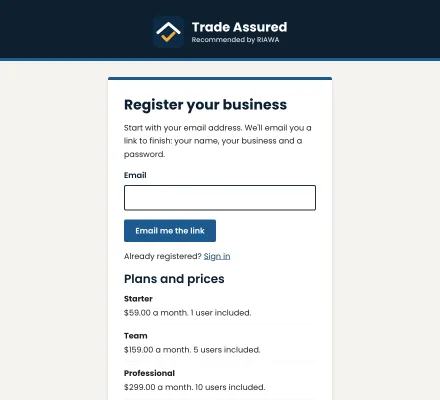
Register your business: the first page. On a computer. 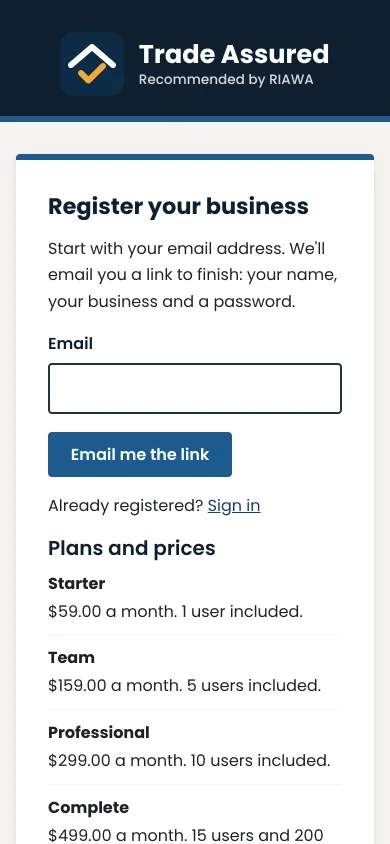
On a phone. Step 2: Open the link we email you
A link to finish registering is emailed to you. It works for 24 hours. Only someone who can open that inbox can create the account.
Nothing there? Check the junk folder, or try another address.
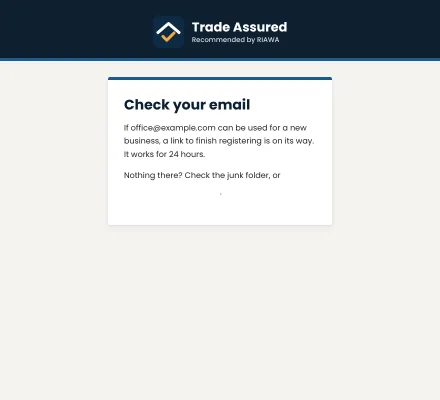
The page after sending: check your email. On a computer. 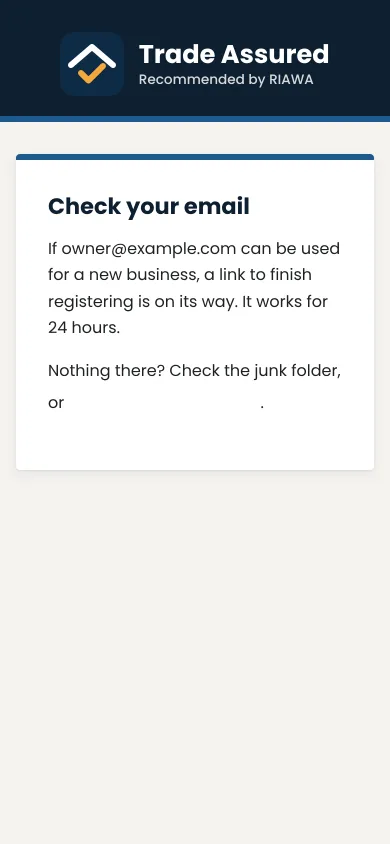
On a phone. Step 3: Your details and your business
The link opens the rest of the form. Enter your name, your business's name and, if you have it handy, its ABN (you can add it later).
Tick the states your business works in. WA is ticked to start, and the app only takes work in the states you choose; you can change them later.
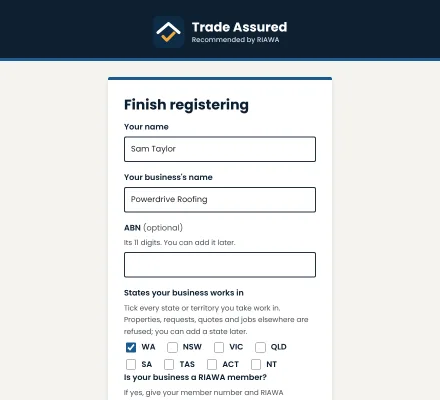
Finish registering, filled in for Powerdrive Roofing. On a computer. 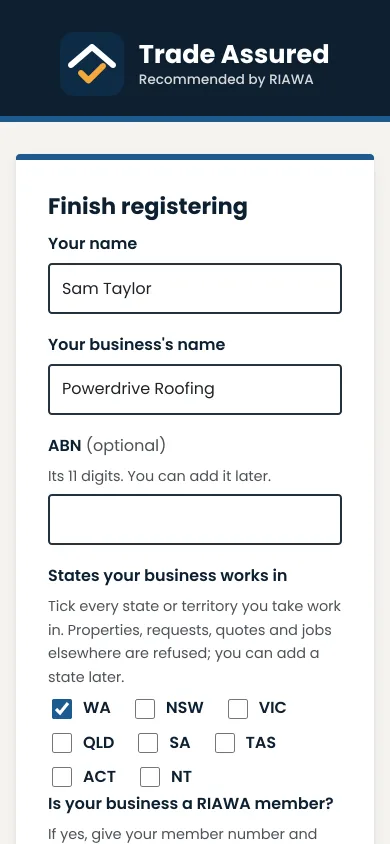
On a phone. Step 4: RIAWA membership and your main trade
Say whether your business is a RIAWA member. If it is, enter the member number: RIAWA confirms it against its member list before the member price applies.
Choose your main trade from the seven offered. Your business gets that trade's features, and you can add other trades later in Settings, Your trades.
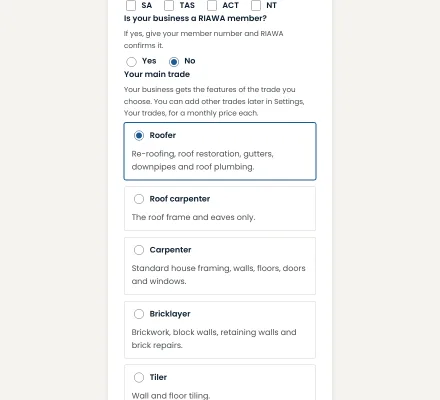
The RIAWA question and the main trade. On a computer. 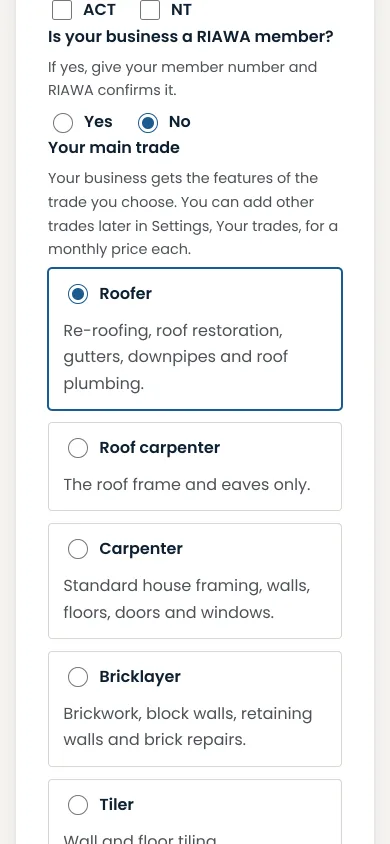
On a phone. Step 5: Choose your plan
All six plans are listed with their monthly price, the users and AI receptionist minutes they include, and what each adds. Every plan is open to every business.
You can change plan later in Settings, Plan.
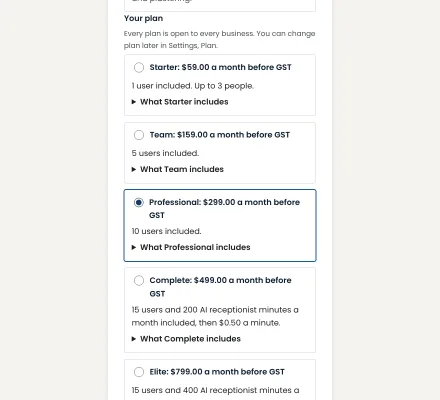
All six plans with their prices. On a computer. 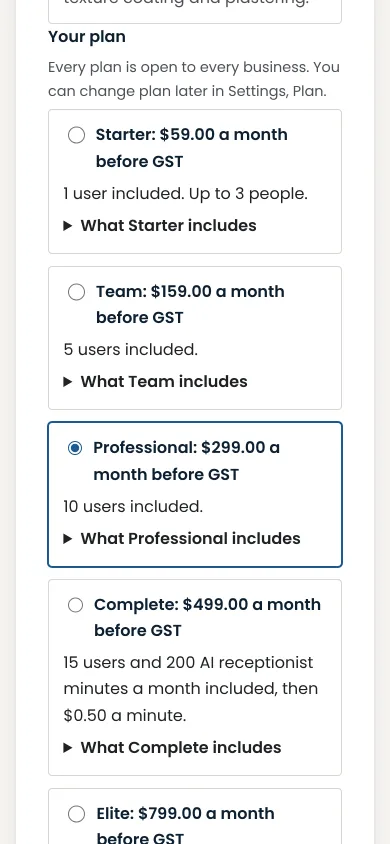
On a phone. Step 6: Set your password
Choose a password of at least 12 characters and type it twice, then select Continue.
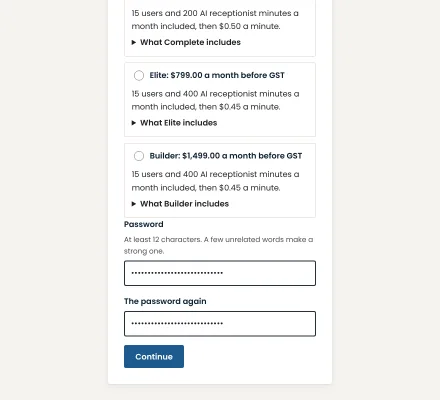
The password, typed twice. On a computer. 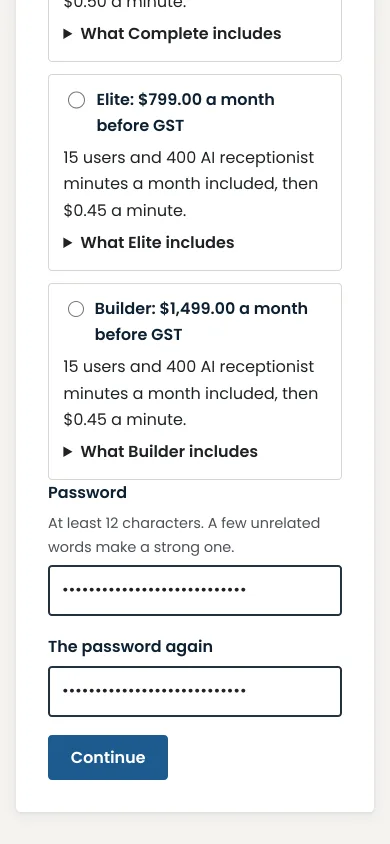
On a phone. Step 7: Set up your authenticator app
Every sign-in asks for a code from an authenticator app, such as Google Authenticator or Microsoft Authenticator, as well as your password. A leaked password alone can't open your clients' records.
On your phone, tap to add the account to the app; on a computer, scan the code. Then type the 6-digit code the app shows.
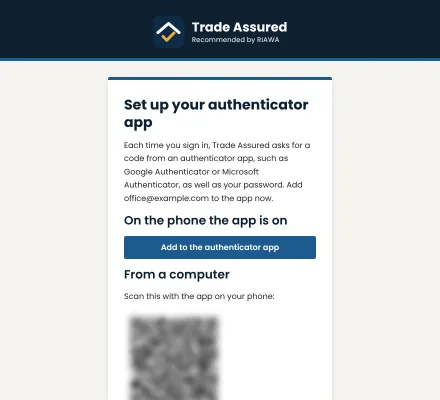
Adding the account to an authenticator app (the code is blurred here). On a computer. 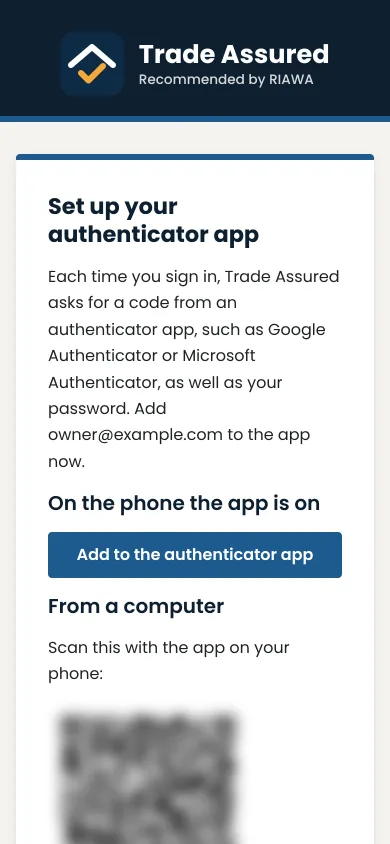
On a phone. Step 8: Sign in
That's it. Sign in with your email, your password and the code from the app, and Trade Assured opens on your business's home page.
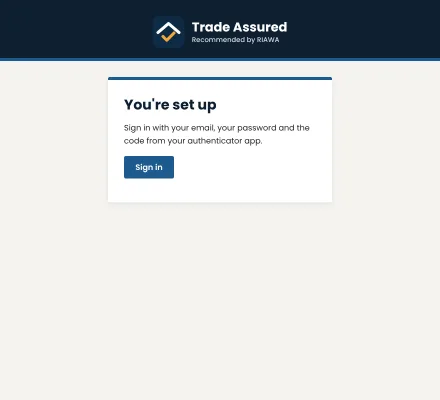
You're set up. On a computer. 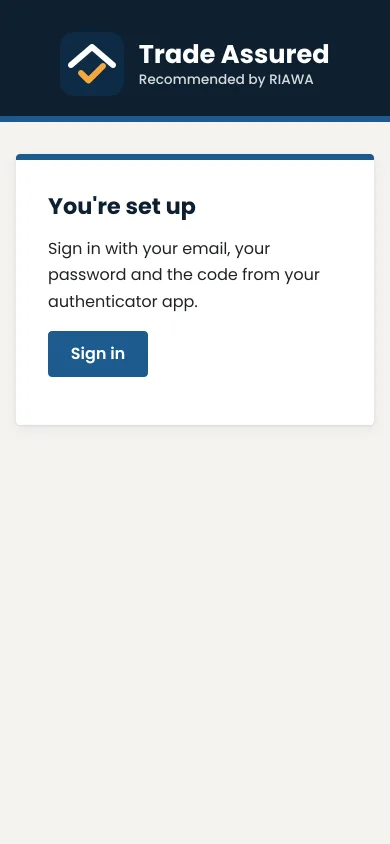
On a phone.
Ready when you are
It takes a few minutes, and you can change your plan later.